Animated captions that stay in sync after every cut
Quick answer
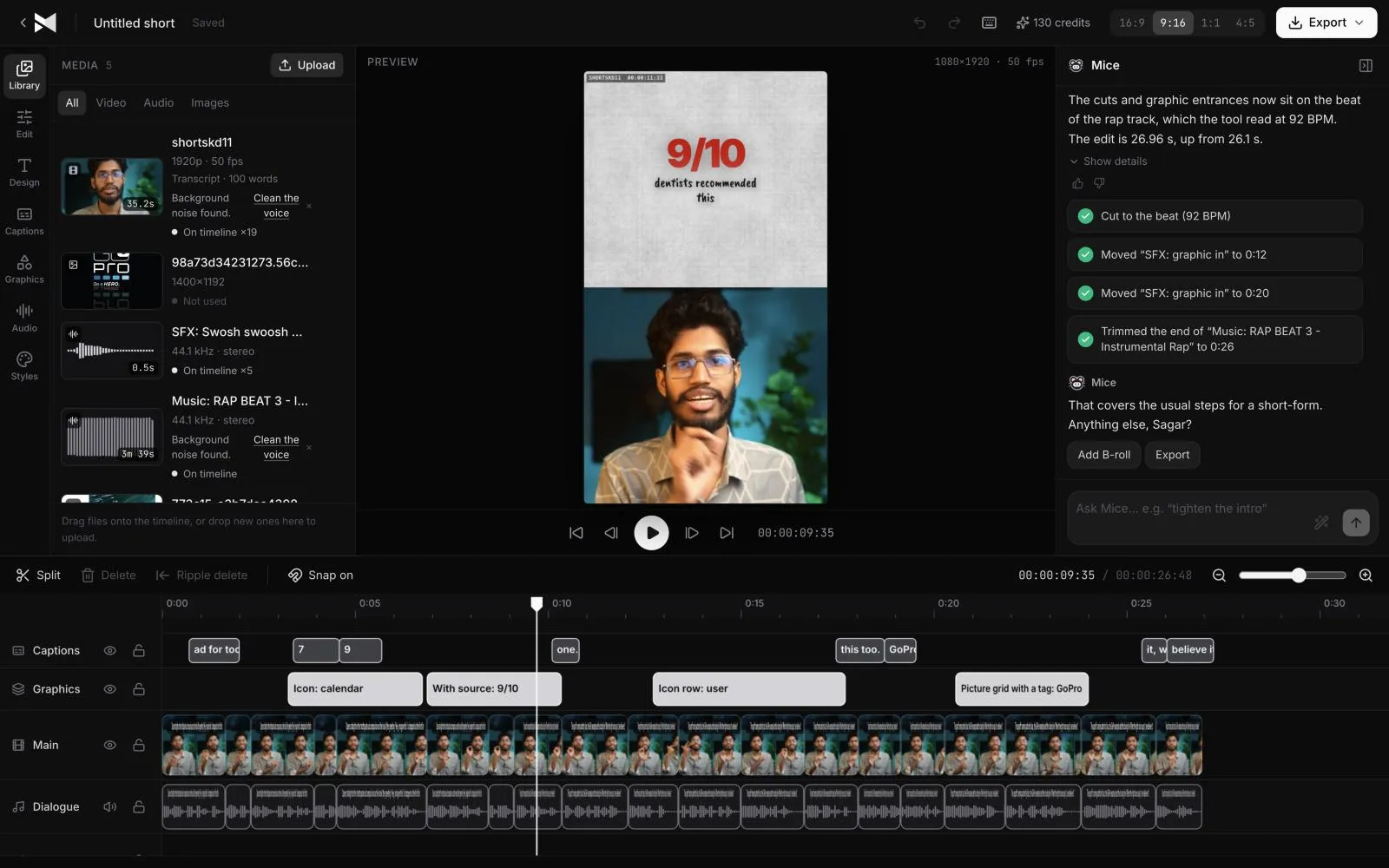
MirrorCut generates captions from your speech and ties them to the audio, so they stay in sync after every cut, whether you make it or the AI agent does. Choose from 48 animated styles, highlight the words that matter, and export SRT or VTT caption files at any point.
Most viewers watch Shorts and Reels with the sound off, so captions decide whether a clip gets watched. But captions made before the final edit break the moment you trim a pause or move a clip.
MirrorCut generates captions from your speech and keeps them tied to the audio, so they stay in sync through every cut, by you or by the agent. Pick from 48 animated styles, highlight key words, and export caption files when you need them.
Start your free trial7 days free, then $10 a month. Works in your browser.
Just ask for it
Things you can type to MirrorCut's agent:
- “Add word-by-word captions in a bold style”
- “Add captions and highlight the speaker's key words”
- “Add animated captions in the style that fits each clip”
- “Export captions as SRT and VTT for the whole course”
How it works
- 1
Upload your video
MP4, MOV, MKV or WebM. MirrorCut transcribes the speech as part of building your edit.
- 2
Ask for captions
Choose a style yourself or let the agent pick one that fits each clip. Ask it to highlight the words that matter.
- 3
Edit freely
Cut, trim and rearrange. Captions follow the audio, so they never drift out of sync. Export SRT or VTT files at any point.
What MirrorCut does
48 animated caption styles
Word-by-word captions in eight families, designed for Shorts, Reels and TikTok, from clean subtitles to bold hero words.
In sync after every cut
Captions follow the speech through every trim and cut, by you or by the agent, so editing never breaks them.
Key-word highlights
Ask the agent to emphasise the speaker's key words so the message lands even without sound.
SRT and VTT export
Download standard caption files for YouTube, course platforms or any player that takes subtitles.
You approve every change
Each AI edit is outlined on the timeline and explained in one line. Accept it, revert it, or keep editing by hand; your edits and the agent's share one undo history.
Guides
- How to make video ads with your phoneHow to make a video ad with just your phone: what to record, a simple setup for light and sound, filming several takes, and editing it into every format.
- Video ad hooks: 30 examples, and how to find yours30 video ad hook examples by type (problem, result, question, contrast, proof), and how to find the strongest hook already in your own recording.
Free tools
No sign-up; they run in your browser.
- Text to SRT converterPaste a transcript and split it into caption lines of the length you choose, then download it as an SRT or VTT file with estimated timings.
- SRT to VTT caption converterConvert caption files between SRT and WebVTT in your browser: paste or drop a file, convert it, and download the result. Nothing is uploaded.
Questions
- Which caption file formats can I export?
- SRT and VTT, the two formats YouTube, course platforms and most video players accept.
- Can I edit the caption text?
- Yes. Captions are part of your edit, so you can correct any word in the editor.
- Do captions work on vertical Shorts?
- Yes. Captions sit on top of every format, including 9:16 Shorts and 1:1 feed posts, and follow the speaker's audio.
- What does it cost?
- Every account starts with 7 days of Creator free (a card is required). After that, Creator is $10, Pro is $30, Studio is $60 a month, and every yearly payment adds 50 bonus AI credits.
Bring one recording and see your first cut
7 days free, then $10 a month.
Start your free trial